Removing the «About:Blank» Virus from W2K
Overview
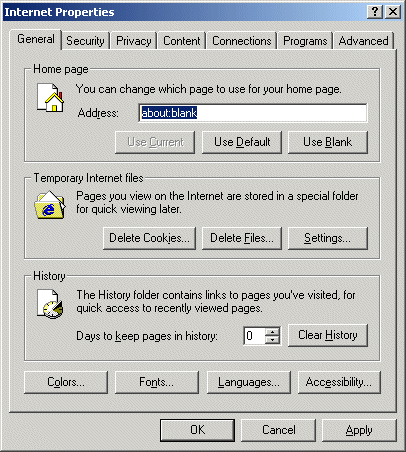
You my notice that your Home Page Setting in Internet Explorer is kept being reset to about:blank and there was a search page that would startup. Even if you reset it to something else it will be reset back to about:blank after a while. We run Norton Antivirus - without success!
There are two malicious .dll files on you computer. One is visible and can be easily deleted. The other is HIDDEN. The hidden .dll regenerates the viewable .dll if it is deleted or changed. The hidden file is the problem.
To rid your self of the hidden .dll, which is the core of the problem, do the following.
Solution
Step 1
The first and easy step is to remove the visible DLL. Sort the C:\Windows\System32 Folder on the Column "Modified" an you will see the visible DLL on top of Windows Explorer:
C:\Windows\System32\"Visible".dll
Note that "Visible" is a name which changes each time, so your visible name is not the same as ours.
You cannot remove it using Windows Explorer, because the visible DLL is in use. But you can rename it to something like: remove_me_after_reboot. Rename the visible DLL in the CMD-shell or any other tool (e.g. Cygwin).
After rebooting your PC, delete this renamed file.
Step 2
The key is to find the hidden DLL, since there are two, one will be modifying your internet explorer pages and resetting them to about:blank, the other is hidden and loaded at all times, first you need this program:
http://www.resplendence.com/download/reglite.exe
Download it - and install it - No harm!
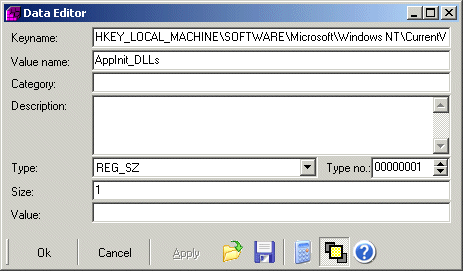
Open reglite and paste this value in the address bar:
HKEY_LOCAL_MACHINE\SOFTWARE\Microsoft\Windows NT\
CurrentVersion\Windows\\AppInit_DLLsThen double click:
AppInit_DLLs
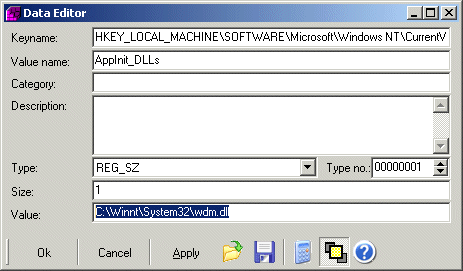
You should be able to see a file with this address:
C:\Windows\System32\"Hidden".dll
For example on my W2K box, the hidden file is called wdm.dll
Step 3
Install the Windows Recovery Console Option if not already done:
The Windows Recovery Console is not the plain DOS prompt you can find in your START menu, here's how you can access this console:
(X = your CD Drive)
1. Pop in the Win2000/WinXP CD.
2. Run X:\i386\winnt32.exe /cmdcons
3. A dialog comes up saying it takes 10mb, etc., etc. - Click yes to install.If you already see the boot menu you're done. If you don't then lets make it appear:
- Right Click My Computer
- Click Properties
- Click advanced tab
- Click startup and Recovery Settings
- Check Time to Display List of Operating Systems
- Set the timeout to something reasonable like 10 seconds
- Apply the settings, reboot, and you should see the new option to go into the recovery console. You'll need the Administrator password for your computer to access the console.
Then in to the Windows Recovery Console go to C:\Windows\System32, there modify the file by using the Attrib command, otherwise you won't be able to erase it, another way you could, is to change the name of the file.
C:\Winnt\System32: rename wdm.dll about_blank
C:\Winnt\System32: attrib -R about_blank
Step 4
Reboot your system and open reglite again, go back to the same key:
AppInit_DLLs and delete the value.
Now you can reset your Home Page Setting for Internet Expolrerer to your desired Page - why not Akadia ?