CVS stands for Concurrent Version System. It is a
version control system that has been developed in the public domain by many people
beginning in 1986. Currently, CVS is maintained by Cyclic Software and there is lots of
information of their web site at http://www.cvshome.org/.
Using CVS, you can record the history of your source
files (normally text files, binary files are handled with some restrictions). Instead of
save every version of every file, CVS stores only the differences between the versions.
CVS also helps you if you are working in a group on the same project: CVS merges the work
when each developer has done its work.
Moreover, CVS allows you to isolate changes onto a
separate line of development, known as a branch. When you change files on a
branch, the changes do not appear on the main trunk. Later you can move the
changes from one branch to another branch (or the main trunk) by merging.
The CVS repository stores a complete copy of all
the files and directories which are under version control. Normally, you never access any
of the files in the repository directly. Instead, you use CVS commands to get your own
copy of the files into a working directory, and then work on that copy.
CVS can access a repository by a variety of means. It
might be on the local computer, or it might be on a computer across the room or across
the world. Using CVS with a remote repository we talk about client/server
operation. Several protocols are supported to connect to the remote repository, e.g.
rsh, password authentication, GSSAPI, kerberos.
You can define several repositories if you have
different development groups that work on separate projects without sharing any code. All
you have to do is to specify the appropriate repository when you are starting the
session.
If you want to keep track of a set of revisions
involving more than one file, you can use tags to give a symbolic name to a
certain revision of each file. You can think of the tag as a handle. When you pull on
that handle, you get all the tagged revisions.
file1 file2 file3
file4 file5
1.1
1.1
1.2 1.1
1.2 *** 1.1 *** 1.3 *** 1.2 *** 1.1 *** <*** tag ***>
1.3 1.2 1.4
1.5
So it's a good idea to tag every software release,
patch, or merge with its unique tag.
Often, two developers try to edit the same file
simultaneously. CVS supports some solutions for this situation, e.g.
- File locking or reserved checkouts: Only one person is allowed to
edit each file at a time.
- Use watches: Watched files are checked out read-only. To make them
read-write (and inform others watchers) the cvs edit command is used.
- Unreserved checkouts: The rarity of serious conflicts may be surprising, so
often neither file locks nor watches are used. If an overlap occurs, CVS prints a
warning and the resulting file includes both versions of the lines that overlap,
delimited by special markers.
Note: In some cases unreserved checkouts are clearly
inappropriate (e.g. if no merging tool exists).
3. A Sample Session
To learn the most used CVS commands, we are walking
through a typical work session. The commands are shown as CVS command line and over
WinCVS menus. Note that the most used WinCVS commands have short cuts or context
sensitive popup menus (by clicking the right mouse button).
The first thing you must set-up your CVS session. Set
your environment and login to the server.
CVS commands
Set $CVSROOT for local access...
> CVSROOT=<cvs_root>
> export CVSROOT
... or remote access and connect to the CVS
server:
>
CVSROOT=:pserver:<username>@<servername>:<cvs_root>
> export CVSROOT
> cvs login
WinCVS commands
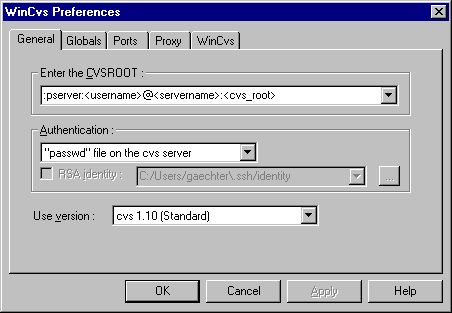
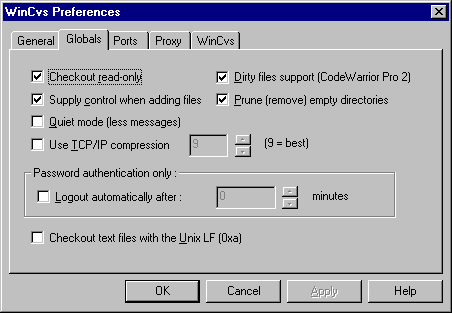
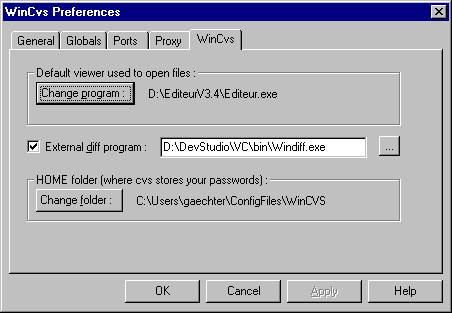
Start your WinCVS client program. First time you must
set-up your preferences.
Admin -> Preferences -> General Settings
Admin -> Preferences -> Global Settings
Admin -> Preferences -> WinCVS Settings
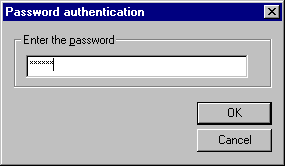
Then you can login to the CVS server:
Admin -> Login
Remarks
The repository's root directory <cvs_root> is
defined either on the local server or on the remote server <servername>. After the
successful login, you are ready to work under CVS.
Next thing you must do is to get your own working copy
of the source. Change to your working directory and use the checkout command to do this
(option -r for read-only).
CVS commands
> cd <work_dir>
> cvs -r checkout <module>
WinCVS commands
Create -> Checkout module ...
Choose your working area
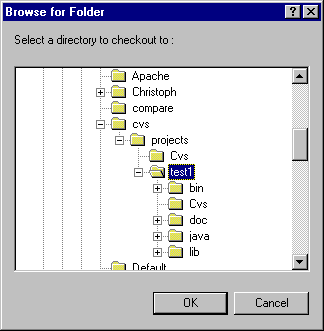
Choose your module
Use the default settings in
this example. By default, files are checked out as read-only.
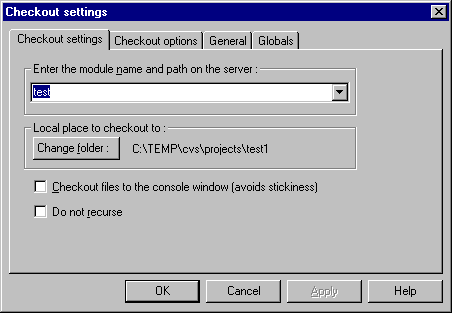
Remarks
After the successful login, the sources of
<module> will be copied into your local working area <work_dir>.
<module> is either a valid module name or a relative path in the repository.
If you have already checked out the sources you can
update your working area with the newest checked-in files:
CVS commands
> cvs update
WinCVS commands
Select the <module> in the module tree, then the
menu Modify à Update selection...
Remarks
The default directory for the update command is always
the current working directory. The command updates the subdirectories recursively.
In this chapter we describe the normal way to edit a
source file using reserved checkout (file locking). Change to the working directory where
the file to edit exists.
CVS commands
> cd <work_subdir>
> cvs admin -l <filename>
> cvs update <filename>
> cvs edit <filename>
> vi <filename>
WinCVS commands
Select the file <filename> in the file list, then
the menus
- Trace -> Lock selection
- Modify -> Update selection ...
- Trace -> Edit
- Query -> View selection or View with <default_editor>
You have decided to make a new version of the file
<filename>. This will store your new file in the repository and make it available
to other developers. For the undo of changes see the next chapter.
CVS commands
> cvs commit -m "<log_message>"
<filename>
> cvs unedit <filename>
WinCVS commands
Select the file <filename> in the file list, then
the menu Modify -> Commit selection...
Commit settings, Enter the log message
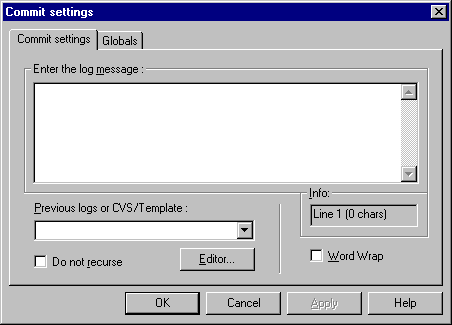
The commit command
automatically unlocks the file <filename>. The unedit command is only successful if watches are in use. WinCVS also
automatically makes the file read-only.
You have decided to undo the changes of the file
<filename>. In this case, all the commands should be reverted. For the commit of
changes see the previous chapter.
CVS commands
> cvs unedit <filename>
> cvs update <filename>
> cvs admin -u <filename>
WinCVS commands
Select the file <filename> in the file list, then
the menus
- Trace -> Unedit selection
- Trace -> Unlock selection
You can finish your session with the cleanup of your
working area. Use the release command therefore. This command checks that all your
modifications have been committed.
CVS commands
> cd <work_dir>
> cvs release -d <module>
WinCVS commands
Select the <module> in the module tree, then the
menu Trace à Release selection.
Remarks
The -d option removes your working copy too. Otherwise
you can remove the working area manually.
4. Advanced Commands
In this chapter some further CVS commands are
described. This commands are very useful but not used in the daily business. Most of this
commands have a variety of options so we recommend to look up in [CVS] as well.
To add a new file to a directory, follow these
steps:
-
You must have a working copy of the directory.
-
Create the new file inside your working copy of the directory.
-
Use the command cvs add
<filename> to add this file to version control. For binary files use the option
-kb.
-
Use the command cvs commit
<filename> to actually check in the file into the repository. Other developers
cannot see the file until your perform this step.
You can also use the command cvs add to add a new directory as well. Note: Unlike most other
command the add command is not recursive.
New files are added, and old files disappear. But you
want to be able to retrieve an exact copy of old releases everytime.
Here is what you can do to remove a file:
-
Make sure that you have not made any uncommitted changes to the
file.
-
Remove the file from your working copy of the directory (use rm or
delete).
-
Use cvs remove <filename> to
tell CVS that you really want to delete the file.
-
User cvs commit <filename> to
actually perform the removal of the file form the repository.
Removing directories is similar to removing files: The
way that you remove a directory is to remove all the files in it. You don't remove the
directory itself. Instead you specify the option -P to cvs update, cvs checkout, or cvs
export, which will cause CVS to remove empty directories from working directories.
Tags are symbolic names to a certain revision of each
file. We recommend to tag all software releases, patches, or merges with its unique
tag.
You have two possibilities to tag: Running the
cvs tag command causes CVS to select the revisions which
are checked out in the current working directory. The cvs
rtag command works directly on the repository contents and requires no prior
checkout and does not look for a working directory.
Using the Working Directory
For the following cvs command tags the current working
directory.
CVS commands
> cd <work_dir>
> cvs tag -c <tag_name> [file | directory | module]
WinCVS commands
Select the module in the module tree or the file in the
file list, then the menu Modify -> Create a tag on selection...
Remarks
You can use the option -c to check for uncommitted
changes
(locally modified files).
Using the Repository
The cvs rtag command
tags the repository as of a certain date or time. This is useful to tag the latest
version. rtag works directly on the repository and
requires no prior checkout. This command is not supported by WinCVS. Tag the most recent
revision no later than <date> ...
> cvs rtag -f -D <date> <new_tag>
[file | directory | module]
... or tag those files that contain existing tag
<existing_tag>
> cvs rtag -f -r <existing_tag>
<new_tag>
[file | directory | module]
CVS allows you to isolate changes onto a separate line
of development, known as a branch. When you change files on a branch, those
changes do not appear on the main trunk.
Create a Branch
Again you will use the cvs tag or cvs rtag commands to
create a branch. The tag command uses the current revisions in the working copy, the rtag
command works directly in the repository:
> cvs tag –b <branch_tag>
... or tag those files that contain existing tag
<existing_tag>
> cvs rtag -f -r <existing_tag>
<branch_tag>
[file | directory | module]
Note that branches always get created in the
repository, not in the working copy. So you must checkout the branch files to your
working directory explicit:
> cvs -r checkout -r <branch_tag>
<module>
or switch the working directory to a given branch with
the cvs update command:
> cvs -r update -r <branch_tag>
<module>
Now you can work on the branch files and commit your
changes back to repository.
Merging a Branch
You can merge changes made on a branch into your
working copy. The working copy could be either the main trunk or another branch.
> cvs update -j <branch_tag> [file |
directory | module]
The option -j merges the changes made between up to the
newest revision on that branch into your working copy. Conflicts can result from the
merge operation. This conflicts should be resolved before committing the changes to the
repository.
If the development continuos on that branch, you may
want to merge those changes again. As recommended earlier each merged revision should be
tagged in the branch. Use that tag for subsequent merges:
> cvs update -j <merge_tag> -j
<branch_tag>
[file | directory | module]
The most common use for CVS is to store text files. If
you are willing to give up a few of CVS' abilities (such as display differences, merging
revisions), CVS can store binary files as well.
The -kb option
available in some CVS commands insures that neither line ending conversion nor keyword
expansion will be done. New files can be added as follows:
> cvs add -kb -m "A binary file"
<filename>
Or you can use the following commands to recover the
binary file:
> cvs admin -kb <filename>
> cvs update -A <filename>
> cvs commit -m "Make it binary" <filename>
CVS can use a mechanism known as keyword
substitution or keyword expansion to help identifying delivered files.
Embedded strings of the form $keyword$ in the source file are expanded to strings
of the form $keyword:value$.
This is a list of the keywords. For full explanation,
please refer to [CVS].
|
$Author$
|
The login name of user who checked
in the revision.
|
|
$Date$
|
Date and time (UTC) the revision was
checked in.
|
|
$Header$
|
A standard header.
|
|
$Id$
|
Same as $Header$ (except RCS file
without path).
|
|
$Name$
|
Tag name used to checkout this
file.
|
|
$Locker$
|
The login name of the user who
locked the revision.
|
|
$Log$
|
The log message supplied during
commit.
|
|
$RCSfile$
|
The name of the RCS file without a
path.
|
|
$Revision$
|
The revision number assigned to the
revision.
|
|
$Source$
|
The full pathname of the RCS
file.
|
|
$State$
|
The state assigned to the
revision.
|
5. Administrator Tasks
In this chapter some administrator tasks are discussed.
The directory $CVSROOT/CVSROOT contains some
administrative files. You can edit this files in the same way that you would edit any
other module: Get a working copy, edit it, and commit your changes in the normal way.
When you check in an administrative file, CVS rebuilds the administrative file
database.
The most important of the administrative files is the
modules file. It defines all modules in the repository. This is not strictly necessary,
but modules can be convenient in grouping together related files and directories.
Three different line formats are valid:
# key -a aliases...
# key [options] directory
# key [options] directory files...
This is a sample of modules file:
CVSROOT CVSROOT
modules CVSROOT modules
test projects/test1
One could write books about security issues... Here are
only some recommendations.
The directory $CVSROOT/CVSROOT contains
confidential information. You must control the permissions on this directory very
restrictive, specially if you are using the password authenticated server.
It is possible to grant read-only access to the repository using the
password authenticated server. There are two ways to do this: by inclusion and by
exclusion. Inclusion means listing all users with read-only access in the
$CVSROOT/CVSROOT/readers file. Exclusion means explicitly
listing everyone who has write access in the $CVSROOT/CVSROOT/writers file. Please refer to the following
rules:
-
If readers exists, and the user is
listed in it, then the user gets read-only access.
-
If writers exists, and the user is
not listed in it, then the user gets read-only access. This is true even if readers
exists, and the user is not listed in it.
-
If both files exist and the user is listed in them, CVS resolves
this conflict in a conservative way: such a user gets read-only access.
When authenticating a password, the server first checks for the user in
the file. If it finds the user, it will use that entry for authentication, else the
server can try to authenticate user name and password using the operating system's
identification (fall back behaviour). Please find further information in [CVS].
In a first step the files must be created in the
repository. The next step is to define the module in the modules file. This step is not strictly necessary, but modules can
be convenient in grouping together related files and directories.
Creating the Repository from Existing Files
You will probably already have several projects that
can be put under CVS control. In this case you will use the import command:
> cd <working_dir>
> cvs import -m "Imported sources"
<repository_dir> <vendor_tag> <release_tag>
The files in the working directory
<working_dir> are imported in the CVS repository as
$CVSROOT/<repository_dir>. <repository_dir> could contain a
directory structure as well.
It is a good idea to check that the permissions CVS
sets on the directories inside $CVSROOT are reasonable, and that they belong to
the proper groups.
If some of the files you want to import are binary, you
may want to use the wrappers features or to change them manually to binary.
Create an empty directory structure and import this
structure to create the corresponding directory structure in the repository. Then use the
add command to add files as they appear.
Check that the permissions CVS sets on the directories
inside $CVSROOT are reasonable.
Creating the Repository from Other Version Control Systems
If you have a project which you are maintaining with
another version control system, you may wish to put the files from that project into CVS
and preserve the revision history of the files. Here the way for RCS is shown, please see
[CVS] for other systems.
This is one of the few times when it is a good idea to
access the CVS repository directly: Create the appropriate directories in CVS if they do
not already exit. Then copy the files in the appropriate directories in the CVS
repository without changing the file name.
Note that the RCS files are not locked when you copy
them into CVS.
5.4 Backing Up the Repository
For the most part it is possible to backup the
repository just like any other files. However, there are a few issues to consider:
To get a consistent state of the repository, one should
not use CVS during backup. To not use CVS, you might forbid logins or turn off your CVS
server. Another idea is to lock CVS.
6. Examples
- Go to the top of the project tree: cd
/home/myproj
- cvs import -m "Initial Import into CVS" myproj akadia
start
myproj = Name under which you will check out the project
akadia = vendortag
start = releasetag
The directory tree in now imported in the CVS, however you must now
checking out a working copy, the current directory tree is still not a CVS working
copy.
- Go to another empty directory
Local Repository
- cvs checkout myproj
Remote Repository
- cvs -q -d
:pserver:zahn@rabbit.akadia.com:/opt/cvs-root \
checkout myproj
You get the same as what you imported, with the addition of a
subdirectory named CVS
- cd CVS (In the working CVS directory)
- ls -l
-rw-r--r-- 1 zahn dba 134 Aug 29 13:56 Entries
-rw-r--r-- 1 zahn dba 7 Aug 29 13:56 Repository
-rw-r--r-- 1 zahn dba 14 Aug 29 13:56 Root
- cat Repository
myproj
- cat Entries
/README.txt/1.1.1.1/Tue Aug 29 10:30:36 2000//
/hello.c/1.1.1.1/Tue Aug 29 10:30:36 2000//
D/a-subdir////
D/b-subdir////
D/myproj////
- cat Root
/opt/cvs-root
Make a change on hello.c, even if nothing in the repository has changed
since checkout, something in the working copy may have, and update will show that.
- cvs update
cvs update: Updating .
M hello.c
cvs update: Updating a-subdir
cvs update: Updating a-subdir/subsubdir
cvs update: Updating b-subdir
cvs update: Updating myproj
The M next to hello.c means the file has been modified. If
you want a more detailed look at the changes, you can get a full report in diff format.
- cvs diff
- cvs -Q diff (Shorter
Output)
- cvs -Q diff -c (Display some lines of context on
either side of a change)
The commit command send modifications to the
repository.
- cvs commit -m "Error corrected in explain()"
cvs commit: Examining .
cvs commit: Examining a-subdir
cvs commit: Examining a-subdir/subsubdir
cvs commit: Examining b-subdir
cvs commit: Examining myproj
Checking in hello.c;
/opt/cvs-root/myproj/hello.c,v <-- hello.c
new revision: 1.2; previous revision: 1.1
done
Check the status of the files in the CVS repository
- cvs status
Finding out who did what (Browsing Log Messages)
- cvs log
Create the new file in the working CVS directory, add and commit it in
CVS:
- cvs add newfile.c
cvs server: use 'cvs
commit' to add this file permanently
- cvs ci -m "Added newfile.c" newfile.c
RCS file: /opt/cvs-root/myproj/newfile.c,v
done
Checking in newfile.c;
/opt/cvs-root/myproj/newfile.c,v <-- newfile.c
initial revision: 1.1
done
Unlike adding files, adding a new directory is done in one step:
- mkdir c-subdir
- cvs add c-subdir
Directory /opt/cvs-root/myproj/c-subdir added to the repositor
CVS handles CRLF correctly on textfiles, but this is not desired for
binary files, therefore use the -kb option. For Textfiles you may disable the keyword
expansion as well: use -ko.
cvs add -kb who
cvs ci -m "Binary File added" who
Removing a file is similar to adding one, except there's an extra step:
You have to remove the file from the working copy first.
rm newfile.c
cvs remove newfile.c
cvs ci -m "removed newfile.c" newfile.c
Removing newfile.c;
/opt/cvs-root/myproj/newfile.c,v <-- newfile.c
new revision: delete; previous revision: 1.1
done
CVS doesn't really keep directories under version control. If you want to
remove a directory from a project, you first remove all the files in it, then use update -P
to remove the directory from the working directory.
cd a-subdir
rm file1 file2 file3
cvs remove file1 file2 file3
cvs ci -m "Removed all files"
Now remove empty directory from working copy
cvs update -P
CVS does not automatically bring new directories from the repository into
your working copy. From time to time you should run update -d, telling to bring down any
new directories from the repository.
cvs update -d
All empty directories from the repository are now rebuild in the working
copy.
Renaming a file is equivalent to creating it under the new name and
removing the old file.
mv README.txt INSTALL.txt
cvs remove README.txt
cvs add INSTALL.txt
cvs ci -m "renamed README.txt to INSTALL.txt" README.txt INSTALL.tt
Removing README.txt;
/opt/cvs-root/myproj/README.txt,v <-- README.txt
new revision: delete; previous revision: 1.2
done
RCS file: /opt/cvs-root/myproj/INSTALL.txt,v
done
Checking in INSTALL.txt;
/opt/cvs-root/myproj/INSTALL.txt,v <-- INSTALL.txt
initial revision: 1.1
done
Renaming Directories is a bit cumbersome. The best policy is to try to
come up with a good layout when you initially import the project. One solution to rename
one or more directories is to checkout the project, make the changes on the local working
copy, delete the CVS project in the repository and import the changed project again.
cd myproj
mv a-subdir z-subdir
find . -name CVS -exec rm -rf {} \;
cd /opt/cvs-root
rm -rf myproj
cd /home/zahn/myproj
cvs import -m "Test Projekt" myproj akadia start
rm -r myproj
cvs checkout myproj
The date-based retrieval are done by passing update the -D flag. With the
-D option, update retrieves the highest revision of each file as of the given date and it
will revert the files in the working copy to prior revisions if necessary. Retrieving by
date is useful when the mere passage of time is your main concern.
cvs -q update -D "2000-09-14"
Often you really want to retrieve the project as it was at the time of a
specific event -- perhaps a public release, a known stable point in the software
development or the addition or removal of some major feature. The method CVS offers for
making such marks is known as tagging.
Setting a Tag (Snapshot):
cvs rtag Final-Release myproj
Retrieving the tagged release (Snapshot):
cvs checkout -P -r Final-Release myproj
Removing Tags (untagging)
cvs rtag -d Final-Release
myproj
|

