
Data Binding in .NET / C# Windows Forms
More Information on installing the .Net Framework click here.
Download full Visual Studio C# .NET Example
from this Article.
Contents
Array or Collection
ADO.NET Data ObjectsExample: Automatically synchronized Master-Detail
Managing Data Relation
Binding to a DataGrid
Binding to a ComboboxExample: Form's BindingContext Position Management
Handling of the PositionChanged event for the Form's BindingContext
Format and Parse Events of the Binding ClassExample: Binding to a ComboBox or ListBox
Overview
Data binding provides a way for developers to create a read/write link between the controls on a form and the data in their application (their data model). Classically, data binding was used within applications to take advantage of data stored in databases. Windows Forms data binding allows you to access data from databases as well as data in other structures, such as arrays and collections.
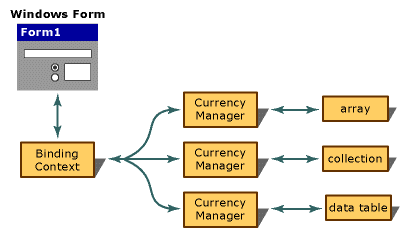
Binding Context
Each Windows Form has at least one BindingContext object that manages the CurrencyManager objects for the form. For each data source on a Windows Form, there is a single CurrencyManager object. Because there may be multiple data sources associated with a Windows Form, the BindingContext object enables you to retrieve any particular CurrencyManager object associated with a data source.
Example
For example if you add a TextBox control to a form and bind it to a column of a table (e.g. "Customers.FirstName") in a dataset (e.g. "dsCust"), the control communicates with the BindingContext object for that form. The BindingContext object, in turn, talks to the specific CurrencyManager object for that data association. If you queried the CurrencyManager's Position property, it would report the current record for that TextBox control's binding. In the example below, a TextBox control is bound to the FirstName column of a Customers table on the dsCust dataset through the BindingContext object for the form it is on.
// Simple Data Binding
txtBox.DataBindings.Add("Text",dsCust,"Customers.FirstName");// Get current Rowposition
CurrencyManager cm = (CurrencyManager)this.BindingContext[dsCust,"Customers"];
long rowPosition = (long)cm.Position;
CurrencyManager
The CurrencyManager is used to keep data-bound controls synchronized with each other (showing data from the same record). The CurrencyManager object does this by managing a collection of the bound data supplied by a data source. For each data source associated with a Windows Form, the form maintains at least one CurrencyManager. Because there may be more than one data source associated with a form, the BindingContext object manages all of the CurrencyManager objects for any particular form. More broadly, all container controls have at least one BindingContext object to manage their CurrencyManagers.
An important property of the CurrencyManager is the Position property. Currency is a term used to refer to the currentness of position within a data structure. You can use the Position property of the CurrencyManager class to determine the current position of all controls bound to the same CurrencyManager.
For example, imagine a collection consisting of two columns called "ContactName" and "Phone". Two TextBox controls are bound to the same data source. When the Position property of the common CurrencyManager is set to the fourth position within that list (corresponding to the fifth name, because it is zero-based), both controls display the appropriate values (the fifth "ContactName" and the fifth "Phone") for that position in the data source.
Example
For example the Position property of the CurrencyManager is often manipulated in a Next / Prev Navigation Button.
// Position to next Record in Customer
private void btnNext_Click(object sender, System.EventArgs e)
{
CurrencyManager cm = (CurrencyManager)this.BindingContext[dsCust,"Customers"];
if (cm.Position < cm.Count - 1)
{
cm.Position++;
}
}

Bindable Data Sources
In Windows Forms, you can bind to a wide variety of structures, from simple (arrays) to complex (data rows, data views, and so on). As a minimum, a bindable structure must support the IList interface. As structures are based on increasingly capable interfaces, they offer more features that you can take advantage of when data binding. The list below summarizes the type of structures (data containers) you can bind to and provides some notes about what data-binding features are supported.
To act as a data source, a list must implement the IList interface; one example would be an array that is an instance of the System.Array class.
ADO.NET provides a number of data structures suitable for binding to:
- DataColumn object — A DataColumn object is the essential building block of a DataTable, in that a number of columns comprise a table. Each DataColumn object has a DataType property that determines the kind of data the column holds. You can simple-bind a control (such as a TextBox control's Text property) to a column within a data table.
You add simple data bindings by using the DataBindings collection on a control:
txtBox.DataBindings.Add("Text",dsCust,"Customers.FirstName");
- DataTable object — A DataTable object is the representation of a table, with rows and columns, in ADO.NET. A data table contains two collections: DataColumn, representing the columns of data in a given table (which ultimately determine the kinds of data that can be entered into that table), and DataRow, representing the rows of data in a given table. You can complex-bind a control to the information contained in a data table (such as binding the DataGrid control to a data table). However, when you bind to a DataTable, you are a really binding to the table's default view
You add complex data binding by using the DataSource and DataMember properties:
grdCustomer.DataSource = dsCust;
grdCustomer.DataMember = "Customers";
- DataView object — A DataView object is a customized view of a single data table that may be filtered or sorted. A data view is the data "snapshot" used by complex-bound controls. You can simple- or complex-bind to the data within a data view, but be aware that you are binding to a fixed "picture" of the data rather than a clean, updating data source.
- DataSet object — A DataSet object is a collection of tables, relationships, and constraints of the data in a database. You can simple- or complex-bind to the data within a dataset, but be aware that you are binding to the DataSet's default DataViewManager (see below).
- DataViewManager object — A DataViewManager object is a customized view of the entire DataSet, analogous to a DataView, but with relations included. A DataViewSettings collection allows you to set default filters and sort options for any views that the DataViewManager has for a given table.
Example: Automatically synchronized Master-Detail
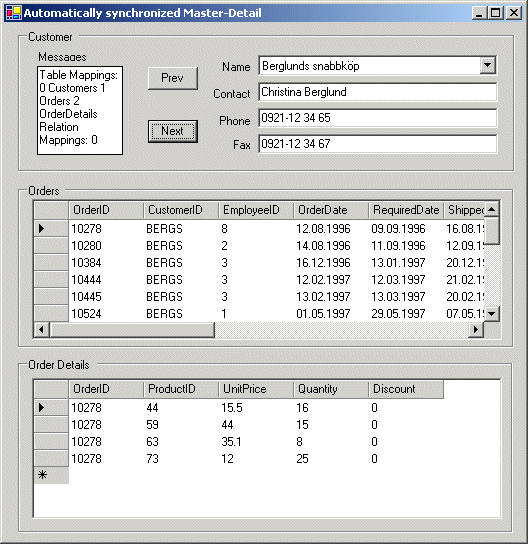
In database applications, it is often useful to view a record with a group of related records. For example, you may want to view a Customer with the current Orders for that Customer. Each Order should also display the current Order Details for this order.
One of the primary functions of a DataRelation is to allow navigation from one DataTable to another within a DataSet. This allows you to retrieve all the related DataRow objects in one DataTable when given a single DataRow from a related DataTable. For example, after establishing a DataRelation between a table of customers and a table of orders, you can retrieve all the order rows for a particular customer row using DataRow.GetChildRows.
If you have two controls bound to the same datasource, and you do not want them to share the same position, then you must make sure that the BindingContext member of one control differs from the BindingContext member of the other control. If they have the same BindingContext, they will share the same position in the datasource.
If you add a ComboBox and a DataGrid to a form, the default behavior is for the BindingContext member of each of the two controls to be set to the Form's BindingContext. Thus, the default behavior is for the DataGrid and ComboBox to share the same BindingContext, and hence the selection in the ComboBox is synchronized with the current row of the DataGrid. If you do not want this behavior, you should create a new BindingContext member for at least one of the controls.
// Establish the Relationship "RelCustOrd" between Customers ---< Orders
System.Data.DataRelation relCustOrd;
System.Data.DataColumn colMaster1;
System.Data.DataColumn colDetail1;
colMaster1 = ds.Tables["Customers"].Columns["CustomerID"];
colDetail1 = ds.Tables["Orders"].Columns["CustomerID"];
relCustOrd = new System.Data.DataRelation("RelCustOrd",colMaster1,colDetail1);
ds.Relations.Add(relCustOrd);
This sample displays a Datagrid for the Orders and a DataGrid for the Order Details for each Order. The Customer Data is bound to a few Textboxes and a Combobox. We will use the Combo Box to select the company name. and display the contact name, phone number and fax number in the text boxes.
As the selected customer changes, the DataGrid's updates to display the orders and order details for that customer. In order to link the two DataGrid objects, you need to set the DataSource of each DataGrid to the same DataSet. You also need to set the DataMember properties to indicate to the Windows Forms BindingContext that they are related. You do this by setting the DataMember for the DataGrid's to the name of the relationship between the Customers and Orders tables. The same is done for the Orders and Order Details Table.
// Setup the grid's view and member data
grdOrders.DataSource = dsView;
grdOrders.DataMember = "Customers.RelCustOrd";
The Combobox doesn't have a DataMember property - instead it has a DisplayMember and ValueMember property:
- The DisplayMember of a Combobox gets or sets a string that specifies the property of the data source whose contents you want to display.
- The ValueMember property determines which value gets moved into the SelectedValue of the Combo Box. In the example, whenever the user selects a Customer by "Customers.CompanyName", the SelectedValue is the "Customers.CustomerID". Whenever the SelectedValue changes, the data-binding moves the new value into the Customer object.
// Setup the combobox view and display-, value member
cbCust.DataSource = dsView;
cbCust.DisplayMember = "Customers.CompanyName";
cbCust.ValueMember = "Customers.CustomerID";
C# Code
using System;
using System.Drawing;
using System.Collections;
using System.ComponentModel;
using System.Windows.Forms;
using System.Data;
using System.Data.SqlClient;
namespace Akadia
{
// Shows Master-Detail, Table-Mapping, Fill a Combobox
public class MasterDetail : System.Windows.Forms.Form
{
.....
// Fields
private String ConnectionString;
private DataViewManager dsView;
private DataSet ds;
public MasterDetail()
{
// Create Components
InitializeComponent();
// Setup DB-Connection
ConnectionString = "data source=xeon;uid=sa;password=manager;database=northwind";
SqlConnection cn = new SqlConnection(ConnectionString);
// Create the DataSet
ds = new DataSet("CustOrders");
// Fill the Dataset with Customers, map Default Tablename
// "Table" to "Customers".
SqlDataAdapter da1 = new SqlDataAdapter("SELECT * FROM Customers",cn);
da1.TableMappings.Add("Table","Customers");
da1.Fill(ds);
// Fill the Dataset with Orders, map Default Tablename
// "Table" to "Orders".
SqlDataAdapter da2 = new SqlDataAdapter("SELECT * FROM Orders",cn);
da2.TableMappings.Add("Table","Orders");
da2.Fill(ds);
// Fill the Dataset with [Order Details], map Default Tablename
// "Table" to "OrderDetails".
SqlDataAdapter da3 = new SqlDataAdapter("SELECT * FROM [Order Details]",cn);
da3.TableMappings.Add("Table","OrderDetails");
da3.Fill(ds);
// Show created Tablenames within the Dataset
string myMessage = "Table Mappings: ";
for(int i=0; i < ds.Tables.Count; i++)
{
myMessage += i.ToString() + " "
+ ds.Tables[i].ToString() + " ";
}
// Establish the Relationship "RelCustOrd"
// between Customers ---< Orders
System.Data.DataRelation relCustOrd;
System.Data.DataColumn colMaster1;
System.Data.DataColumn colDetail1;
colMaster1 = ds.Tables["Customers"].Columns["CustomerID"];
colDetail1 = ds.Tables["Orders"].Columns["CustomerID"];
relCustOrd = new System.Data.DataRelation("RelCustOrd",colMaster1,colDetail1);
ds.Relations.Add(relCustOrd);
// Establish the Relationship "RelOrdDet"
// between Orders ---< [Order Details]
System.Data.DataRelation relOrdDet;
System.Data.DataColumn colMaster2;
System.Data.DataColumn colDetail2;
colMaster2 = ds.Tables["Orders"].Columns["OrderID"];
colDetail2 = ds.Tables["OrderDetails"].Columns["OrderID"];
relOrdDet = new System.Data.DataRelation("RelOrdDet",colMaster2,colDetail2);
ds.Relations.Add(relOrdDet);
// Show created Relations within the Dataset
myMessage += "Relation Mappings: ";
for(int i=0; i < ds.Relations.Count; i++)
{
myMessage += i.ToString() + " "
+ ds.Relations[i].ToString() + " ";
}
txtMessage.Text = myMessage;
// The DataViewManager returned by the DefaultViewManager
// property allows you to create custom settings for each
// DataTable in the DataSet.
dsView = ds.DefaultViewManager;
// Grid Databinding
grdOrders.DataSource = dsView;
grdOrders.DataMember = "Customers.RelCustOrd";
grdOrderDetails.DataSource = dsView;
grdOrderDetails.DataMember = "Customers.RelCustOrd.RelOrdDet";
// Combobox Databinding
cbCust.DataSource = dsView;
cbCust.DisplayMember = "Customers.CompanyName";
cbCust.ValueMember = "Customers.CustomerID";
// Text Columns Databinding
txtContact.DataBindings.Add("Text",dsView,"Customers.ContactName");
txtPhoneNo.DataBindings.Add("Text",dsView,"Customers.Phone");
txtFaxNo.DataBindings.Add("Text",dsView,"Customers.Fax");
}
// Position to prev Record in Customer
private void btnPrev_Click(object sender, System.EventArgs e)
{
if (this.BindingContext[dsView,"Customers"].Position > 0)
{
this.BindingContext[dsView,"Customers"].Position--;
}
}
// Position to next Record in Customer
private void btnNext_Click(object sender, System.EventArgs e)
{
CurrencyManager cm = (CurrencyManager)this.BindingContext[dsView,"Customers"];
if (cm.Position < cm.Count - 1)
{
cm.Position++;
}
}
....
....
// The main entry point for the application.
static void Main()
{
Application.Run(new MasterDetail());
}
}
}
Example: Form's BindingContext Position Management
This example shows two important features
- How to handle the position changing events for the Form's BindingContext.
We want to display the current Position (Record 1 of 5) on the Panel.
- How to use the Format and Parse Events of the Form's BindingContext.
We want to format a Textbox (Date of Birth) which shows a DateTime in short format.
- How to build a strongly typed list, which implements the IList and IComponont Interface.
This list can then be used as a data source.
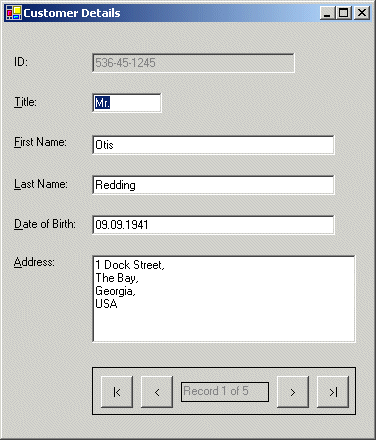
Handling of the PositionChanged event for the Form's BindingContext
The BindingManagerBase.PositionChanged Event occurs when the Position property, managed by the CurrencyManager, changes. If you want to execute you own code, when this event is raised, then you can hook into the position changed event on the BindingContext.
// Get the BindingManagerBase for the Customers List
BindingManagerBase bmCustomers = this.BindingContext[custList];// Add the delegate for the PositionChanged event.
bmCustomers.PositionChanged += new EventHandler(customers_PositionChanged);// Position has changed - update the "Record X of N" Panel private void customers_PositionChanged(object sender, System.EventArgs e) { textBoxPosition.Text = String.Format ( "Record {0} of {1}", ( this.BindingContext[custList].Position + 1 ), custList.Count ); }
Format and Parse Events of the Binding Class
There are two events on the binding class that are most useful. They are Format and Parse. These two events are raised when ever the data is pushed from the data source to the control or when the data is pulled from the control to the data source. This allows you to do special validating and formatting of the data.
The Format event is used for formatting the data from the data source before it is displayed on the control. So when data is pushed from the data source to the control in the Format event is raised and you can perform whatever data formatting or validation is necessary prior to displaying it.
The Parse event is used when that data is changed in the control and needs to go back to the data source. A classic example of this process would be data that is stored as a decimal, but displayed as a currency. The code in the event handler for the Format event would take the decimal value and format it for currency display, while the code in the Parse event handler will take the currency and convert it back to decimal type.
In our example, we want to format the DateOfBirth TextBox:
// We want to format the DateOfBirth, so process the format and
// parse events for the DateOfBirth text box. To accomplish this,
// we add our own event handlers to the Format and Parse events.
Binding dobBinding = new Binding("Text", custList, "DateOfBirth");
dobBinding.Format += new ConvertEventHandler(this.textBoxDOB_FormatDate);
dobBinding.Parse += new ConvertEventHandler(this.textBoxDOB_ParseDate);
textBoxDOB.DataBindings.Add(dobBinding);// Format the Date Field to short date form for display in the TextBox
private void textBoxDOB_FormatDate(object sender, ConvertEventArgs e)
{
// We only deal with converting to dates and strings
if (e.DesiredType != typeof(DateTime)) return;
if (e.Value.GetType() != typeof(string)) return;
string value = (string)e.Value;
try
{
e.Value = DateTime.Parse(value);
}
catch(Exception ex)
{
MessageBox.Show(ex.Message);
}
}// Parse the textbox contents and turn them back into a date
private void textBoxDOB_ParseDate(object sender, ConvertEventArgs e)
{// We only deal with converting to strings from dates
if (e.DesiredType != typeof(string)) return ;
if (e.Value.GetType() != typeof(DateTime)) return ;
DateTime dt = (DateTime)e.Value;
e.Value = dt.ToShortDateString();
}
Example: Binding to a ComboBox or ListBox
This sample demonstrates binding data to a ComboBox. Binding data to a ListBox follows the same model. To bind data to the list of items that are displayed, set the DataSource and DisplayMember properties of the ComboBox. The DisplayMember property is used to determine which property of the State object to display in the ComboBox.
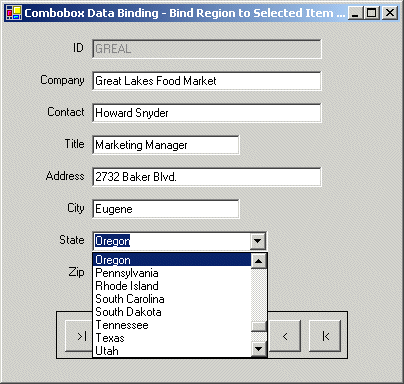
Bind a ComboBox to an array of State objects
namespace Akadia.ComboBoxBinding
{
using System;
using System.ComponentModel;
using System.Drawing;
using System.Windows.Forms;
using System.Data;
using System.Data.SqlClient;
public class ComboBoxBinding : System.Windows.Forms.Form
{
.....
// Lookup "Table" with States for the Comobox
public struct State
{
private string _shortName, _longName;
public State(string longName , string shortName)
{
this._shortName = shortName;
this._longName = longName;
}
public string ShortName { get { return _shortName; } }
public string LongName { get { return _longName; } }
}
// Define the Array of States for the DropDown List
public State[] States = new State[] {
new State("Alabama","AL")
,new State("Alaska","AK")
,new State("Arizona" ,"AZ")
,new State("Arkansas","AR")
,new State("California" ,"CA")
......
} ;
public ComboBoxBinding()
{
.......
// Populate the list
comboBoxState.DataSource = States;
// Define the field to be displayed
comboBoxState.DisplayMember = "LongName";
// Define the field to be used as the value
comboBoxState.ValueMember = "ShortName";
// Bind the selected value of the the ComboBox to the
// Region field of the current Customer
comboBoxState.DataBindings.Add("SelectedValue", customersDataSet1, "Customers.Region");
........
}
}
}