
Inheriting Windows Forms with Visual C# .NET
More Information on installing the .Net Framework click here.
Download full Visual Studio C# .NET
Example from this Article.
Overview
In order to understand the power of OOP, consider, for example, form inheritance, a new feature of .NET that lets you create a base form that becomes the basis for creating more advanced forms. The new "derived" forms automatically inherit all the functionality contained in the base form. This design paradigm makes it easy to group common functionality and, in the process, reduce maintenance costs. When the base form is modified, the "derived" classes automatically follow suit and adopt the changes. The same concept applies to any type of object.
Example
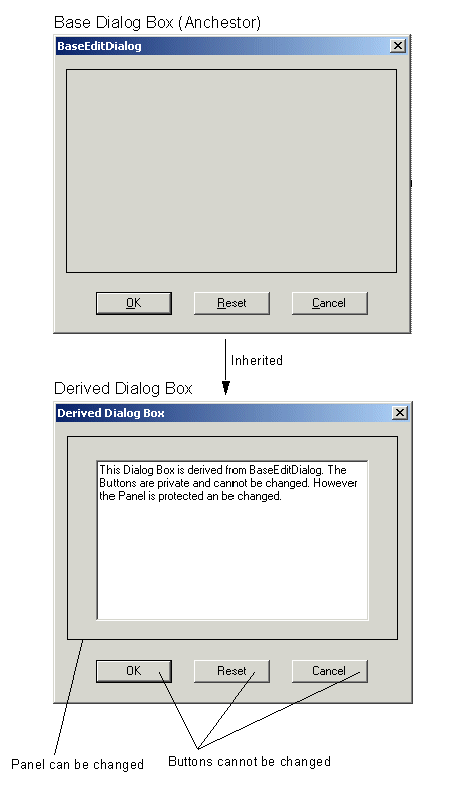
Visual inheritance allows you to see the controls on the base form and to add new controls. In this sample we will create a base dialog form and compile it into a class library. You will import this class library into another project and create a new form that inherits from the base dialog form. During this sample, you will see how to:
- Create a class library project containing a base dialog form.
- Add a Panel with properties that derived classes of the base form can modify.
- Add typical buttons that cannot be modified by inheritors of the base form.
Create a class library project containing a base dialog form
In Visual C# .net perform the following steps
From the File menu, choose New and then Project to open the New Project dialog box.
Create a Windows Application named BaseObjects.
To create a class library instead of a standard Windows application, right-click the BaseObjects project node in Solution Explorer and select Properties.
In the properties for the project, change the output type from Windows Application to Class Library and click OK.
From the File menu, choose Save All to save the project and files to the default location.
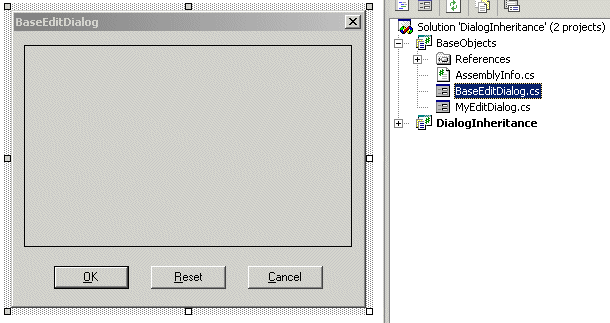
Next add the buttons and the panel to the base form. To demonstrate visual inheritance, you will give the panel different access level by setting their Modifiers properties.
The OK and Cancel buttons have assigned actions due to their DialogResult setting. When either button is clicked, the dialog is deactivated and the appropriate value returned. We will require a way to save our modified settings when the OK button is clicked, and we need a way to perform an action when the Reset button is clicked. As a solution, let's add two protected methods that child classes can implement to handle these situations. We will cretae a SaveSettings() method to store the modified values and a ResetSettings() method to handle a click of the Reset button.
The Form class provides a Closing event that occurs whenever the form is about to close. The protected OnClosing method is invoked whenever the Close method is called, and it in turn raises the Closing event by invoking any registered event handlers. If Cancel is set to TRUE, then the close operation is cancelled and the application will continue to run. If Cancel is set to FALSE, then the close operation is not cancelled and the application will exit.
Here is the Code for BaseEditDialog.cs
using System;
using System.Drawing;
using System.Collections;
using System.ComponentModel;
using System.Windows.Forms;
namespace Akadia
{
namespace BaseObjects
{
public class BaseEditDialog : System.Windows.Forms.Form
{
// These Objects cannot be changed in the derived Forms
private System.Windows.Forms.Button btnOK;
private System.Windows.Forms.Button btnReset;
private System.Windows.Forms.Button btnCancel;
// These Objects can be changed in the derived Forms
protected System.Windows.Forms.Panel panel1;
.......
.......
// Derived Forms MUST override this method
protected virtual void ResetSettings()
{
// Code logic in derived Form
}
// Derived Forms MUST override this method
protected virtual bool SaveSettings()
{
// Code logic in derived Form
return true;
}
// Handle Closing of the Form.
protected override void OnClosing(CancelEventArgs e)
{
// If user clicked the OK button, make sure to
// save the content. This must be done in the
// SaveSettings() method in the derived Form.
if (!e.Cancel && (this.DialogResult == DialogResult.OK))
{
// If SaveSettings() is OK (TRUE), then e.Cancel
// will be FALSE, therefore the application will be exit.
e.Cancel = !SaveSettings();
}
// Make sure any Closing event handler for the
// form are called before the application exits.
base.OnClosing(e);
}
// Event for Reset Button Click
private void btnReset_Click(object sender, System.EventArgs e)
{
// Call ResetSettings()in the derived Form
ResetSettings();
}
}
}
}
To add an inherited form
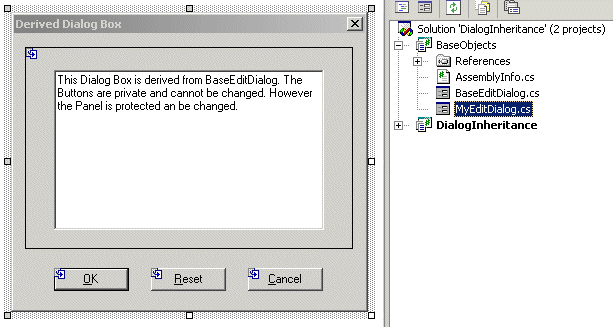
Right-click the BaseObjects project and select Add and then Inherited Form.
In the Add New Item dialog box, verify that Inherited Form is selected, and click OK.
In the Inheritance Picker dialog box, enter MyEditDialog, this creates the derived form.
Open the inherited form in the Windows Forms Designer by double-clicking it, if it is not already open.
In the Windows Forms Designer, the inherited buttons have a glyph in their upper corner, indicating they are inherited.Add the methods ResetSettings() and SaveSettings() which overrides the anchestor methods.
using System;
using System.Collections;
using System.ComponentModel;
using System.Drawing;
using System.Windows.Forms;
namespace Akadia
{
namespace BaseObjects
{
// This is a derived Dialog Box, to show how Inheritance
// works in Visual C#
public class MyEditDialog : Akadia.BaseObjects.BaseEditDialog
{
private System.Windows.Forms.TextBox txtBox;
private System.ComponentModel.IContainer components = null;
......
......
// The ResetSettings() method in the Anchestor
// is overide. Therefore you can code the Logic
// here in the derived Form.
protected override void ResetSettings()
{
MessageBox.Show("Processing Reset Settings ...");
}
// The SaveSettings() method in the Anchestor
// is overide. Therefore you can code the Logic
// here in the derived Form.
protected override bool SaveSettings()
{
MessageBox.Show("Processing Save Settings ...");
return true;
}
}
}
}
Create a project to test the inherited form application
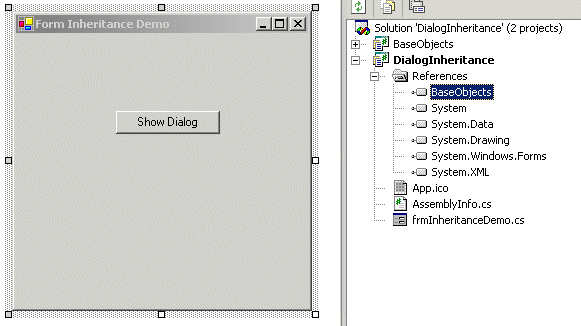
From the File menu, choose Add Project and then New Project to open the New Project dialog box.
Create a Windows application named DialogInheritance.
Add a reference from this project to the BaseObjects project: Right-click references in the DialogInheritance project, choose Add Reference, Projects. Now you can select the appropriate BaseObjects.dll.
using System;
using System.Drawing;
using System.Collections;
using System.ComponentModel;
using System.Windows.Forms;
using System.Data;
// Make our own base objects visible
using Akadia.BaseObjects;
namespace Akadia.DialogInheritance
{
// This Form shows how Form Inheritance works in C#
public class frmInheritanceDemo : System.Windows.Forms.Form
{
private System.Windows.Forms.Button btnShowDialog;
private System.ComponentModel.Container components = null;
public frmInheritanceDemo()
{
// Create visual Components
InitializeComponent();
}
.....
.....
// The main entry point for the application.
static void Main()
{
Application.Run(new frmInheritanceDemo());
}
// Call the derived Edit Dialog Form
private void btnShowDialog_Click(object sender, System.EventArgs e)
{
MyEditDialog dlg;
dlg = new MyEditDialog();
if (dlg.ShowDialog() == DialogResult.OK)
{
MessageBox.Show("OK Button clicked in MyEditDialog()");
}
}
}
}
Test the application
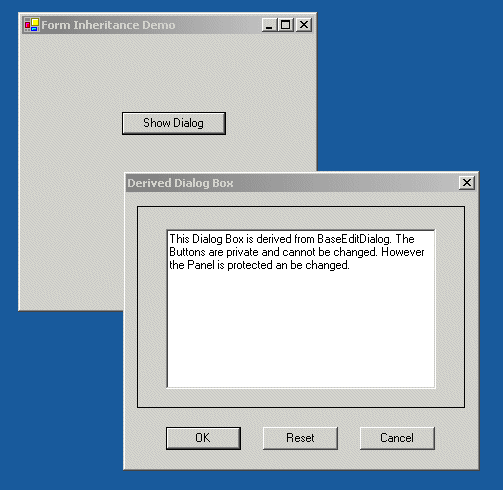
Start the application with [F5] and see how it works.
Conclusion
On some occasions, you may decide that a project calls for a form similar to one that you have created in a previous project. Or you may want to create a basic form with settings such as a watermark or certain control layout that you will then use again within a project, with each iteration containing modifications to the original form template. Form inheritance enables you to create a base form and then inherit from it and make modifications while preserving whatever original settings you need.
You can create subclassed forms in code or by using the Visual Inheritance picker.