
Managing Processes and Threads in Windows Forms
More Information on installing the .Net Framework click here.
Download full
Visual Studio C# .NET Examples from this Article.
Overview
You can use the Process component to start and stop processes and to retrieve information about your running processes on a computer. For example, you might use an instance of the Process component to determine whether a process had stopped responding. If the value returned true, you could have the component force the process to stop or prompt the user with the information and offer a choice of options.
Starting Processes
You can use the Process component to start processes on your system by calling the Start method. Before you call Start, you must specify the file name of the process to start by setting the FileName property to either the fully qualified path to the target process, or in the case of qualified Windows applications such as Notepad, simply the process name.
// Start a Program forever
private void btnStartPgm_Click(object sender, System.EventArgs e)
{
Process myProcess = new Process();
myProcess.StartInfo.FileName = "Notepad";
myProcess.StartInfo.WindowStyle = ProcessWindowStyle.Maximized;
myProcess.Start();
}
Stopping Processes
You can use the Responding property to determine if the user interface of a process is responding. When you attempt to read the Responding property, a request is sent to the user interface of the target process. If there is an immediate response, the return property value is true; a false property value is returned if there is no response from the interface. This property is useful if you need to force a frozen application to close.
There are two methods you can use to stop a process with a Process component. The method you use depends on the type of process being stopped:
- If the process has a graphical user interface, call the CloseMainWindow method. This method sends a close request to the main window of the process and behaves in the same manner as selecting the Close command from the user interface. Using this method gives the target program a chance to prompt the user to save any unsaved data during the cleanup operation.
- If the process does not have a user interface, call the Kill method.
The following example shows how to determine if Notepad is responding. If the Response property is true, call the CloseMainWindow method to close the application. If the Response property is false, the Kill method is called to force the process to close.
// Stop Notepad if running
private void btnStopPgm_Click(object sender, System.EventArgs e)
{
Process[] myProcesses;
// Returns array containing all instances of Notepad.
myProcesses = Process.GetProcessesByName("Notepad");
foreach(Process myProcess in myProcesses)
{
myProcess.CloseMainWindow();
}
}
Waiting for Processes to Complete Actions
A process is said to be idle when its main window is waiting for input from the system. In order to test the process for its idle state, you must first bind a Process component to it. You can call the WaitForInputIdle method before having the target process perform an action.
The WaitForInputIdle method instructs a Process component to wait for the associated process to enter an idle state. The method is useful, for example, when your application waits for a process to finish creating its main window before communicating with that window. The WaitForInputIdle method only works with processes that have a user interface.
// Start a Program some Sec
private void btnStartPgmShort_Click(object sender, System.EventArgs e)
{
Process process = new Process();
process.StartInfo.FileName = "Notepad";
process.Start();
process.WaitForInputIdle();
Thread.Sleep(5000);
if(!process.CloseMainWindow())
{
process.Kill();
}
}
Print a File
The only necessary StartInfo member to set is the FileName property. Starting a process by specifying the FileName property is similar to typing the information in the Run dialog box of the Windows Start menu. Therefore, the FileName property does not need to represent an executable file. It can be of any file type for which the extension has been associated with an application installed on the system. For example the FileName can have a .txt extension if you have associated text files with an editor, such as Notepad, or it can have a .doc if you have associated .doc files with a word processing tool, such as Microsoft Word. Similarly, in the same way that the Run dialog box can accept an executable file name with or without the .exe extension, the .exe extension is optional in the FileName member. For example, you can set the FileName property to either "Notepad.exe" or "Notepad".
If the file name involves a nonexecutable file, such as a .doc file, you can include a verb specifying what action to take on the file. For example, you could set the Verb to "Print" for a file ending in the .doc extension.
// Print a File using the associated Programm
private void btnPrintFile_Click(object sender, System.EventArgs e)
{
const int ERROR_FILE_NOT_FOUND =2;
const int ERROR_ACCESS_DENIED = 5;
Process myProcess = new Process();
try
{
// Get the path that stores user documents.
string myDocumentsPath =
Environment.GetFolderPath(Environment.SpecialFolder.Personal);
myProcess.StartInfo.FileName = myDocumentsPath + "\\Document.txt";
myProcess.StartInfo.Verb = "Print";
myProcess.StartInfo.CreateNoWindow = true;
myProcess.Start();
}
catch (Win32Exception ex)
{
if(ex.NativeErrorCode == ERROR_FILE_NOT_FOUND)
{
String msg = ex.Message + ". Check the path.";
MessageBox.Show(msg, "Validation",
MessageBoxButtons.OK, MessageBoxIcon.Exclamation);
}
else if (ex.NativeErrorCode == ERROR_ACCESS_DENIED)
{
// Note that if your word processor might generate exceptions
// such as this, which are handled first.
String msg = ex.Message + ". Permission denied";
MessageBox.Show(msg, "Validation",
MessageBoxButtons.OK, MessageBoxIcon.Exclamation);
}
}
}
Update a Windows Form Control from a Background Thread
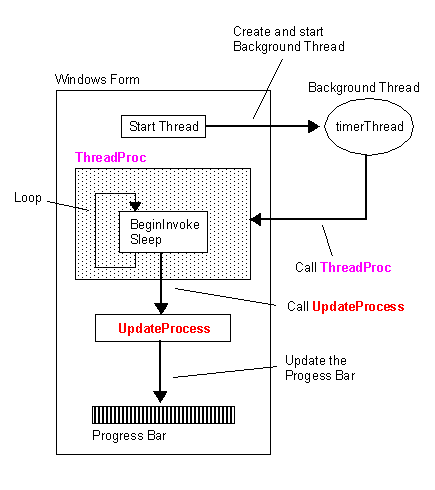
Windows Forms controls can only execute on the thread on which they were created, that is, they are not thread-safe. If you want to get or set properties, or call methods, on a control from a background thread, the call must be marshaled to the thread that created the control.
Create and start the Thread
When a thread is created, a new instance of the Thread class is created using a constructor that takes the ThreadStart delegate as its only parameter. However, the thread does not begin executing until the Start method is invoked. When Start is called, execution begins at the first line of the method referenced by the ThreadStart delegate.
private Thread timerThread;
timerThread = new Thread(new ThreadStart(ThreadProc));
timerThread.IsBackground = true;
timerThread.Start();
Calling a Function from the Thread
MethodInvoker provides a simple delegate that is used to invoke a method with a void parameter list. This delegate can be used when making calls to a control's invoke method, or when you need a simple delegate but don't want to define one yourself. When you create a MethodInvoker delegate, you identify the method that will handle the event. To associate the event with your event handler, add an instance of the delegate to the event. The event handler is called whenever the event occurs, unless you remove the delegate.
BeginInvoke executes the given delegate on the thread that owns this Control's underlying window handle. The delegate is called asynchronously and this method returns immediately. You can call this from any thread, even the thread that owns the control's handle. If the control's handle does not exist yet, this will follow up the control's parent chain until it finds a control or form that does have a window handle. If no appropriate handle can be found, BeginInvoke will throw an exception. Exceptions within the delegate method are considered untrapped and will be sent to the application's untrapped exception handler.
// This Background Thread is called from the ThreadStart Delegate.
public void ThreadProc()
{
try
{
MethodInvoker mi = new MethodInvoker(this.UpdateProgress);
while (true)
{
this.BeginInvoke(mi);
Thread.Sleep(500) ;
}
}
}// This function is called from the Background Thread
private void UpdateProgress()
{
if (progressBar1.Value == progressBar1.Maximum)
{
progressBar1.Value = progressBar1.Minimum ;
}
progressBar1.PerformStep() ;
}
Full Example
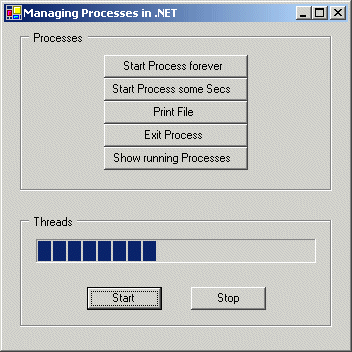
The following example demonstrates the above discussed samples and how to create a background thread that uses a MethodInvoker to update a ProgressBar control at regular intervals.
using System;
using System.Drawing;
using System.Collections;
using System.ComponentModel;
using System.Windows.Forms;
using System.Data;
using System.Threading;
using System.Diagnostics;
namespace Akadia.ManagingProcesses
{
public class ManagingProcesses : System.Windows.Forms.Form
{
private System.Windows.Forms.Button
btnStartPgm;
private System.Windows.Forms.Button
btnStartPgmShort;
private System.Windows.Forms.Button
btnPrintFile;
private System.Windows.Forms.Button
btnStopPgm;
private System.Windows.Forms.Button
btnShowProcesses;
private System.Windows.Forms.ProgressBar
progressBar1;
private System.Windows.Forms.GroupBox
groupBox1;
private System.Windows.Forms.GroupBox
groupBox2;
private System.Windows.Forms.Button
btnStartThread;
private System.Windows.Forms.Button
btnStopThread;
private System.ComponentModel.Container
components = null;
private Thread timerThread;
public ManagingProcesses()
{
InitializeComponent();
}
protected override void Dispose( bool disposing
)
{
if( disposing )
{
if (components != null)
{
components.Dispose();
}
}
base.Dispose( disposing
);
}
....
// The main entry point
for the application.
[STAThread]
static void Main()
{
Application.Run(new
ManagingProcesses());
}
// Start a Program
forever
private void btnStartPgm_Click(object sender,
System.EventArgs e)
{
Process myProcess = new
Process();
myProcess.StartInfo.FileName = "Notepad";
myProcess.StartInfo.WindowStyle = ProcessWindowStyle.Maximized;
myProcess.Start();
}
// Start a Program some
Sec
private void btnStartPgmShort_Click(object
sender, System.EventArgs e)
{
Process process = new
Process();
process.StartInfo.FileName = "Notepad";
process.Start();
process.WaitForInputIdle();
Thread.Sleep(5000);
if(!process.CloseMainWindow())
{
process.Kill();
}
}
// Print a File using the
associated Programm
private void btnPrintFile_Click(object sender,
System.EventArgs e)
{
const int
ERROR_FILE_NOT_FOUND =2;
const int
ERROR_ACCESS_DENIED = 5;
Process myProcess = new
Process();
try
{
// Get the path that stores user documents.
string myDocumentsPath =
Environment.GetFolderPath(Environment.SpecialFolder.Personal);
myProcess.StartInfo.FileName = myDocumentsPath + "\\Document.txt";
myProcess.StartInfo.Verb = "Print";
myProcess.StartInfo.CreateNoWindow = true;
myProcess.Start();
}
catch (Win32Exception
ex)
{
if(ex.NativeErrorCode == ERROR_FILE_NOT_FOUND)
{
String msg = ex.Message + ". Check the path.";
MessageBox.Show(msg, "Validation",
MessageBoxButtons.OK, MessageBoxIcon.Exclamation);
}
else if (ex.NativeErrorCode == ERROR_ACCESS_DENIED)
{
// Note that if your word processor might generate exceptions
// such as this, which are handled first.
String msg = ex.Message + " Permission denied";
MessageBox.Show(msg, "Validation",
MessageBoxButtons.OK, MessageBoxIcon.Exclamation);
}
}
}
// Stop Notepad if
running
private void btnStopPgm_Click(object sender,
System.EventArgs e)
{
Process[]
myProcesses;
//
Returns array containing all instances of Notepad.
myProcesses =
Process.GetProcessesByName("Notepad");
foreach(Process
myProcess in myProcesses)
{
if (myProcess.Responding)
{
myProcess.CloseMainWindow();
}
else
{
myProcess.Kill();
}
}
}
// Show all running
Processes
private void btnShowProcesses_Click(object
sender, System.EventArgs e)
{
Process[] myProcesses =
Process.GetProcesses();
String msg = "";
foreach(Process
myProcess in myProcesses)
{
msg += myProcess.ProcessName + "\n";
}
MessageBox.Show(msg,
"Processes running",
MessageBoxButtons.OK, MessageBoxIcon.Information);
}
// Start the background
thread to update the progress bar
private void btnStartThread_Click(object sender,
System.EventArgs e)
{
StopThread();
timerThread = new
Thread(new ThreadStart(ThreadProc));
timerThread.IsBackground
= true;
timerThread.Start();
}
private void btnStopThread_Click(object sender,
System.EventArgs e)
{
StopThread();
}
// This function is
executed on a background thread.
// It marshalls calls to update the UI back to
the
// foreground thread
public void ThreadProc()
{
try
{
MethodInvoker mi = new MethodInvoker(this.UpdateProgress);
while (true)
{
// Call BeginInvoke on the Form
this.BeginInvoke(mi);
Thread.Sleep(500) ;
}
}
//
Thrown when the thread is interupted by
// the main thread -
exiting the loop
catch
(ThreadInterruptedException)
{
// Simply exit....
}
catch (Exception)
{
}
}
// This function is called
from the background thread
private void UpdateProgress()
{
//
Reset to start if required
if (progressBar1.Value
== progressBar1.Maximum)
{
progressBar1.Value = progressBar1.Minimum ;
}
progressBar1.PerformStep() ;
}
// Stop the background
thread
private void StopThread()
{
if (timerThread !=
null)
{
timerThread.Interrupt();
timerThread = null;
}
}
}
}