Customizing .NET Windows Form DataGrid's
More Information on installing the .Net Framework click here.
Download examples from this Article.
DataGrid Table Styles
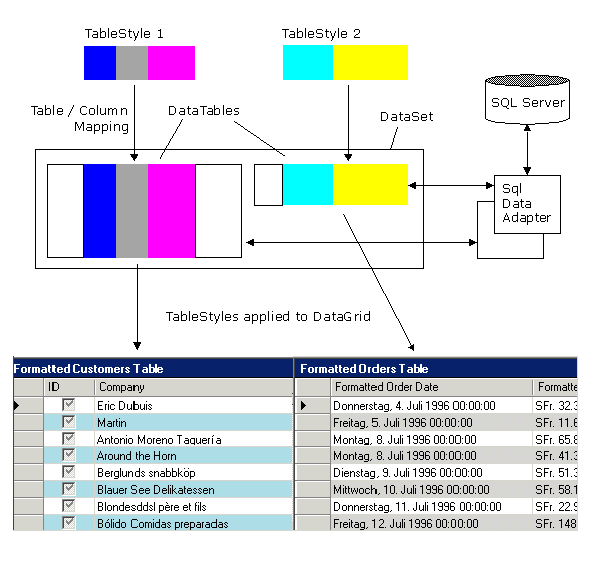
The Windows Form DataGrid control displays data in the form of a grid. The DataGridTableStyle is a class that represents the drawn grid only. This grid should not be confused with the DataTable class, which is a possible source of data for the grid. Instead, the DataGridTableStyle strictly represents the grid as it is painted in the control. Therefore, through the DataGridTableStyle you can control the appearance of the grid for each DataTable. To specify which DataGridTableStyle is used when displaying data from a particular DataTable, set the MappingName to the TableName of a DataTable.
The GridTableStylesCollection contains all the DataGridTableStyle objects used by a System.Windows.Forms.DataGrid control. The collection can contain as many DataGridTableStyle objects as you need, however the MappingName of each must be unique. At run time, this allows you to substitute a different DataGridTableStyle for the same data, depending on the user's preference.
DataGrid Column Styles
The DataGrid control automatically creates a collection of DataGridColumnStyle objects for you when you set the DataSource property to an appropriate data source. The objects created actually are instances of one of the following classes that inherit from DataGridColumnStyle: DataGridBoolColumn or DataGridTextBoxColumn class.
You can also create your own set of DataGridColumnStyle objects and add them to the GridColumnStylesCollection. When you do so, you must set the MappingName of each column style to the ColumnName of a DataColumn to synchronize the display of columns with the actual data.
Example
The following example creates two Table Styles. one for the customer table, the other for the orders table. Then the own Column Styles are used to format the columns.
using System;
using System.ComponentModel;
using System.Data;
using System.Drawing;
using System.Windows.Forms;
using System.Data.SqlClient;
public class CustomGridStyles : System.Windows.Forms.Form
{
private Button btnShowOrders;
private DataGrid myDataGrid;
private DataSet myDataSet;
private Button btnShowCustomers;
private bool TablesAlreadyAdded;
public CustomGridStyles()
{
InitializeComponent();
// Get Customers and Orders from the Database
MakeDataSet();
// Show the Customers Table withot custom Table Style
myDataGrid.DataSource = myDataSet.Tables["Customers"];
}
....
....
public static void Main()
{
Application.Run(new CustomGridStyles());
}
// Show Orders Table with custom Table/Column Style
protected void btnShowOrders_Click(object sender, System.EventArgs e)
{
if (!TablesAlreadyAdded)
{
AddCustomDataTableStyle();
}
myDataGrid.SetDataBinding(myDataSet, "Orders");
myDataGrid.CaptionText = "Formatted Orders Table";
}
// Show Customers Table with custom Table/Column Style
private void btnShowCustomers_Click(object sender, System.EventArgs e)
{
if (!TablesAlreadyAdded)
{
AddCustomDataTableStyle();
}
myDataGrid.SetDataBinding(myDataSet, "Customers");
myDataGrid.CaptionText = "Formatted Customers Table";
}
// Create own Table/Column Styles
private void AddCustomDataTableStyle()
{
// Create the first DataGridTableStyle which is used
// for the "Customers" Table
DataGridTableStyle ts1 = new DataGridTableStyle();
ts1.MappingName = "Customers";
// Set other properties.
ts1.AlternatingBackColor = Color.LightBlue;
// Create a first column style and set its MappingName
// to the "CustomerID" column of the "Customers" Table.
// Set the HeaderText and Width properties. Well I know
// for the "CustomerID" Column it makes not much sense to
// set a DataGridBoolColumn ... it's just a Demo.
DataGridColumnStyle boolCol = new DataGridBoolColumn();
boolCol.MappingName = "CustomerID";
boolCol.HeaderText = "ID";
boolCol.Width = 50;
ts1.GridColumnStyles.Add(boolCol);
// Add a second column style and set its MappingName
// to the "CompanyName" column of the "Customers" Table.
DataGridColumnStyle TextCol = new DataGridTextBoxColumn();
TextCol.MappingName = "CompanyName";
TextCol.HeaderText = "Company";
TextCol.Width = 250;
ts1.GridColumnStyles.Add(TextCol);
// Create the second DataGridTableStyle which is used
// for the "Orders" Table.
DataGridTableStyle ts2 = new DataGridTableStyle();
ts2.MappingName = "Orders";
// Set other properties.
ts2.AlternatingBackColor = Color.LightGray;
// Use a PropertyDescriptor to create a formatted
// column. First get the PropertyDescriptorCollection
// for the data source and data member
PropertyDescriptorCollection pcol = this.BindingContext
[myDataSet,"Orders"].GetItemProperties();
// Create a first formatted column style and set its MappingName
// to the OrderDate" column of the "Orders" Table.
// Format the DateTime as Long Format "F"
DataGridColumnStyle cOrderDate =
new DataGridTextBoxColumn(pcol["OrderDate"], "F", true);
cOrderDate.MappingName = "OrderDate";
cOrderDate.HeaderText = "Formatted Order Date";
cOrderDate.Width = 200;
ts2.GridColumnStyles.Add(cOrderDate);
// Create a second formatted column using a PropertyDescriptor.
// The formatting character "c" specifies a currency format.
DataGridColumnStyle csOrderFreight =
new DataGridTextBoxColumn(pcol["Freight"], "c", true);
csOrderFreight.MappingName = "Freight";
csOrderFreight.HeaderText = "Formatted Freight";
csOrderFreight.Width = 100;
ts2.GridColumnStyles.Add(csOrderFreight);
// Add the DataGridTableStyle instances to
// the GridTableStylesCollection
myDataGrid.TableStyles.Add(ts1);
myDataGrid.TableStyles.Add(ts2);
// Sets the TablesAlreadyAdded to true so this doesn't happen again.
TablesAlreadyAdded = true;
}
// Create a DataSet with two tables and populate it.
private void MakeDataSet()
{
// Setup DB-Connection
string ConnectionString = "data source=xeon;uid=sa;password=manager;database=northwind";
SqlConnection cn = new SqlConnection(ConnectionString);
// Create the DataSet
myDataSet = new DataSet("CustOrders");
// Fill the Dataset with Customers, map Default Tablename
// "Table" to "Customers".
SqlDataAdapter da1 = new SqlDataAdapter("SELECT * FROM Customers",cn);
da1.TableMappings.Add("Table","Customers");
da1.Fill(myDataSet);
// Fill the Dataset with Orders, map Default Tablename
// "Table" to "Orders".
SqlDataAdapter da2 = new SqlDataAdapter("SELECT * FROM Orders",cn);
da2.TableMappings.Add("Table","Orders");
da2.Fill(myDataSet);
}
}