
Connecting to SQL Server 2000 using JDBC
René Steiner, Akadia AG, Information
Technology, CH-3604 Thun
Phone: +41 33 335 86 22 / Fax: +41 33 335 86
25 /
EMail: rene.steiner@akadia.com
Overview
Cross-platform Java Database Connectivity JDBC implementations are commonly used to connect Java programs to any of the major databases available on the market today. There are several possibilities of connecting programs to databases. We'll focus on JDBC here and are going to point out one of the key advantages: there is no client side software installation required.
More exactly, we do not need the Microsoft SQL Server client side installation. JDBC works just over your network. You may take a program to any of your PCs and run it directly from your CD. This works, of course, not only because we use JDBC, but also because we use Java.
Example
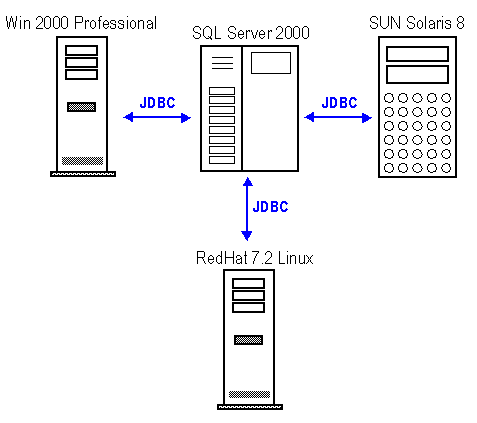
Microsoft SQL Server is located on the machine in the centre of the following figure. Note that SQL Server 2000 is only running on Microsoft's Server Operating Systems. Our test environment includes the following hardware: Windows 2000 Professional, SUN Solaris 8 and Redhat Linux 7.2.
What you need
-
Java 2 Platform, Standard Edition (J2SE)
The essential Java 2 SDK, tools, runtimes, and APIs for developers writing, deploying, and running applets and applications in the Java programming language. Also includes Java Development Kit release 1.1 and Java Runtime Environment 1.1. We used JDK 1.3 for our tests.
Download Site: http://java.sun.com/j2se/1.3/
-
Microsoft SQL Server 2000 JDBC Driver
Beside the JDK, as always required for Java programs, we need the Microsoft implementation of the JDBC specification. The so-called Microsoft SQL Server 2000 JDBC Driver
Download Site: Microsoft Download Site
The Microsoft® SQL Server 2000 Driver for JDBC is a Type 4 JDBC driver that provides highly scalable and reliable connectivity for the enterprise Java environment. This driver provides JDBC access to SQL Server 2000 through any Java-enabled applet, application, or application server.
We can find there drivers for Windows and Unix. If we download the Windows and Solaris drivers we get the following two files:
- setup.exe (Windows)
- mssqlserver.tar (Solaris)
Trying to install the setup.exe on Windows we immediately recognised that we don't know what the installation program exactly does (registry?) and additionally we get about 30 DLLs. That's not what we want!
JDBC does not need any installation or environmental settings. The other thing is that we don't want to have DLLs, instead a pure Java driver, that's the thing we are looking for!
Inside the Solaris mssqlserver.tar file it looks much better. Why not taking the required jar files out of this tar? If it is pure Java it will run on Windows too! ... and it does.
Installation on all above platforms
- Create any Directory on your system
- Untar the file: mssqlserver.tar and you get:
- install.ksh
- msjdbc.tar
- read.me
- Untar the file: msjdbc.tar and you get:
- lib/msbase.jar
- lib/mssqlserver.jar
- lib/msutil.jar
A small Test Program: Test.java
Here's a sample program, which shows how to establish a connection to Microsoft SQL Server. Don't forget to import the java.sql packages to get access to DriverManager and many other related classes and methods.
import java.sql.*;
/**
  * Microsoft SQL Server JDBC test program
  */
public class Test {
  public Test() throws Exception {
    // Get connection
    DriverManager.registerDriver(new
    com.microsoft.jdbc.sqlserver.SQLServerDriver());
    Connection connection = DriverManager.getConnection(
    "jdbc:microsoft:sqlserver://<Host>:1433",<"UID>","<PWD>");
    if (connection != null) {
     System.out.println();
      System.out.println("Successfully connected");
      System.out.println();
      // Meta data
      DatabaseMetaData meta = connection.getMetaData();
      System.out.println("\nDriver Information");
      System.out.println("Driver Name: "
       + meta.getDriverName());
      System.out.println("Driver Version: "
       + meta.getDriverVersion());
      System.out.println("\nDatabase Information ");
      System.out.println("Database Name: "
       + meta.getDatabaseProductName());
      System.out.println("Database Version: "+
      meta.getDatabaseProductVersion());
    }
 } // Test
 public static void main (String args[]) throws Exception {
  Test test = new Test();
 }
}
Compile it
Compile the Java Source: Test.java (all in one line):
$ javac -classpath ".;./lib/mssqlserver.jar;
./lib/msbase.jar;./lib/msutil.jar" Test.javaBe aware that you need access to a javac program on your computer or media. If not, simply specify the full path ahead of javac. The above command is good for Java 2. If your are using for instance Java 1.1.8, add your JDK's classes.zip to the classpath. On Unix systems replace the the semicolons " ; " by colons " : " The forward slashes " / " are fine for both platforms, it's not a must to use backslashes " \ " on Windows.
Run it
Similar to the compilation you may run it like this (again all in one line):
$ java -classpath ".;./lib/mssqlserver.jar;
./lib/msbase.jar;./lib/msutil.jar" TestThe output looks something like this:
Successfully connected
Driver Information
Driver Name: SQLServer
Driver Version: 2.2.0022
Database Information
Database Name: Microsoft SQL Server Database Version:
Microsoft SQL Server 2000 8.00.194 (Intel X86)
Aug 6 2000 00:57:48
Copyright (c) 1988-2000 Microsoft Corporation
Enterprise Edition on Windows NT 5.0
(Build 2195: Service Pack 2)
Download Sources
You can download the sources in a TAR / GZIP File from here.